

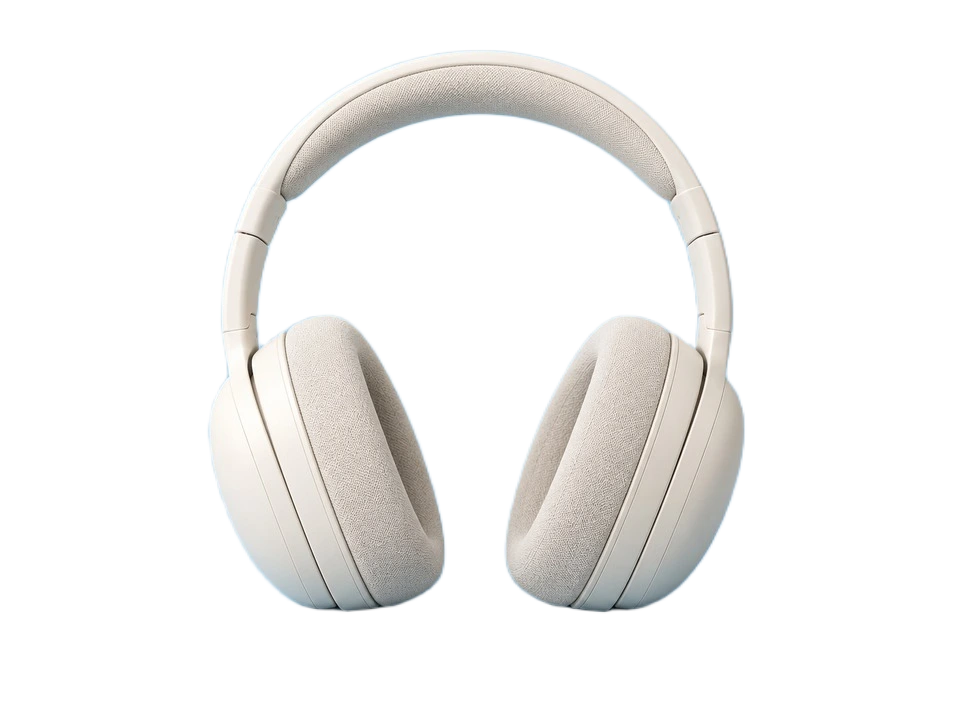
Product photos: isolate an item for a consistent catalog background.
LocalRemove
A photo in. A transparent PNG out. Your photos stay on your device.
Free · No sign-up · Original-size PNG
or drop or paste a photo
PNG · JPEG · WebP
Watermark and background removal share 3 successful processes per day. Failed or cancelled attempts, manual refinements and downloads do not count.
No photo handy? Try one of these
PNG, JPEG or WebP · Up to 25 MiB, 24 megapixels and 8192 pixels per side
First use downloads about 98 MB on GPU or 192 MB on CPU. Loading and processing are separate steps; later images reuse the model while this page stays open.
First use may download an AI model (about 98 MB on GPU or 192 MB on CPU). Later photos reuse the loaded model while this page stays open.


Photos stay private
Your photos are processed on your device, without uploading them.
No account needed
Start with your own photo or try an example. No sign-up needed.
Original-size PNG
Keep the original dimensions and use your cutout in any layout.
Real results from our local model. Explore the examples and check the details that matter to you.
53 examples
Products · 1 / 21AI-generated source
Workflow
Choose or drop a photo with a clear subject.
Wait for the local AI to separate the subject from its background.
Download the PNG, or continue editing the result in Studio.
Use Cases
Remove photo backgrounds for free in your browser. Download a transparent PNG or refine in Studio. No sign-up or photo upload—images stay on your device.
Product photos: isolate an item for a consistent catalog background.

Profile pictures: keep the person and remove distracting surroundings.
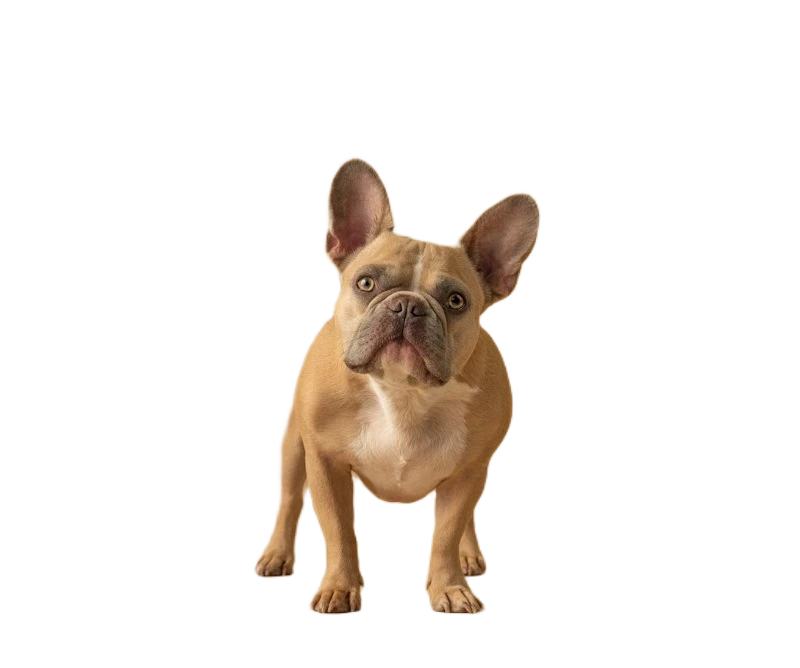
Pet photos: isolate your pet, then inspect fur and whiskers at a closer zoom.
A background remover works best when the main subject is easy to distinguish from its surroundings. You can remove the background from a portrait, product photo, pet picture or graphic in this browser, then check the transparent PNG before using it. These tips help you decide when the automatic result is ready and when it needs a few manual corrections.
Choose a photo where the full subject is visible and its outline does not blend into the background. Avoid cutting off a person's hair, a pet's ears or a product's edges in the source photo. The tool can separate a subject from its surroundings, but it cannot restore details that are missing from the original image.
Fine hair, whiskers, bicycle spokes, glass and reflective surfaces are harder to separate precisely. The AI analyzes a smaller image while preserving the original pixel dimensions for PNG export, so a large download is not proof of equally high-resolution edge detection. Zoom in on these difficult areas before using the cutout professionally.
An edge that looks clean on a checkerboard can show a light halo on dark blue or an unwanted dark fringe against white. After processing, compare the original and result, then switch the preview background. The main download remains a transparent PNG; a separate color-background download is available when you select white or a custom color.
Open the result in Studio. Paint over excess background to erase it, restore missing areas from the original photo, and export with a transparent, white or custom-color background. Edits share Studio undo and history.
Choose an imageFAQ
No. Image pixels are processed inside a browser worker. Network requests download the AI runtime and model, not your photo.
The first run needs internet to download the runtime and model. Browser caching can reduce later downloads, but fully offline availability is not guaranteed.
Results depend on the photo. Fine hair, glass and busy backgrounds can be difficult. The model processes at 512 pixels; the PNG retains the original image dimensions.
Open the result in Studio. Paint over excess background to erase it, restore missing areas from the original photo, and export with a transparent, white or custom-color background. Edits share Studio undo and history.
Choose Erase or Restore, then paint on the image. Each stroke applies when released and can be undone. Background color affects preview and export only.
Yes. In Studio, choose transparent, white or a custom export background. This changes the preview and exported PNG without flattening the editable cutout. Undo applies to selection edits; background color is a separate export setting.
PNG, JPEG or WebP · Up to 25 MiB, 24 megapixels and 8192 pixels per side
Background removal separates the subject from its surroundings. To remove text or a watermark inside the image, use Studio’s existing watermark tool and mark the specific area.